Short answer: trim the start and end, cut mistakes, speed up the waiting, zoom in where text is small, blur anything private, add step titles and captions, then export MP4. Windows 11's Photos app trims and hands bigger edits to Clipchamp; on a Mac, QuickTime trims and splits and iMovie is free. Girato does all seven in a browser tab.
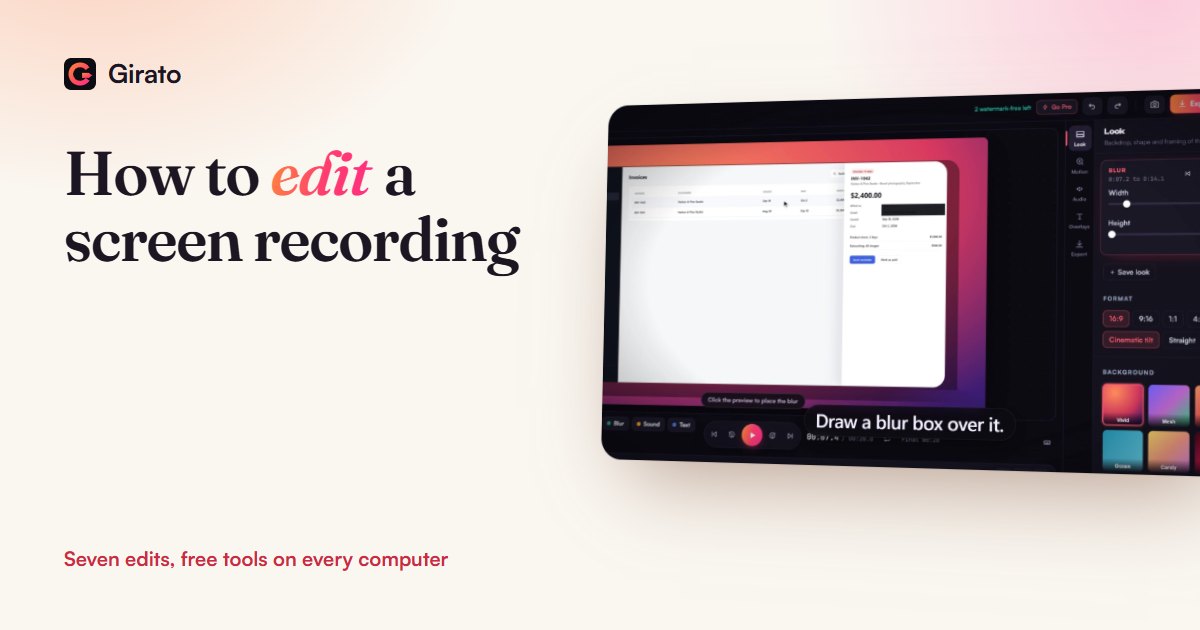
- Import an MP4, MOV or WebM from any recorder
- Zoom, blur, titles and captions in one editor
- Nothing uploaded, no account
The seven edits, in order
- Trim. Cut the seconds before your first click and after your last. Every recording has them.
- Cut mistakes. A wrong click, a cough, a long "um". Girato can find long silences and cut them for you.
- Speed up the waiting. Uploads, loading and typing long text play at 2 to 4 times speed, so viewers see nothing was hidden.
- Zoom where people read. A close-up on each click or field turns small text into something a phone can show.
- Blur private details. Emails, names, keys and balances, for every second they are on screen.
- Titles and captions. A short title per step, and captions for people watching on mute.
- Export. MP4 plays everywhere. Pick 16:9 for YouTube and websites, 9:16 for Shorts and Reels.
Free editors you already have
| Editor | Where | What it does for a screen recording | Cost |
|---|---|---|---|
| Photos | Windows 11 | Trim (Ctrl+E), save as a copy; opens Clipchamp for more | Built in |
| Clipchamp | Windows 11 | Windows 11's built-in video editor; exports up to 1080p with no watermark | Free, 4K with Microsoft 365 |
| QuickTime Player | Mac | Trim, split into clips, rearrange, rotate | Built in |
| iMovie | Mac | Apple's video editor | Free on the Mac App Store |
| Girato | Any browser, Windows, Mac | Trim, cut, speed, zoom, blur, titles, captions, silence cut | Free, 3 watermark-free exports a month |
Editing a recording made somewhere else
Girato's Import video opens an MP4, MOV, WebM, M4V or MKV from any recorder: Snipping Tool, the Mac's Shift-Command-5, OBS, Loom or a phone. Nothing is uploaded: the browser version reads the file where it sits, and the desktop apps keep a copy in Girato's local projects folder so you can reopen it. One difference from Girato's own recordings: an imported video has no record of where you clicked, so you place the zooms yourself, about one click per zoom.
Common mistakes
- Shrinking instead of cropping. Exporting a large screen at a small size blurs the text. Crop or zoom to the part that matters.
- Cutting the proof. Speed up a slow step rather than removing it, so the result still looks real.
- Forgetting the blur moves. If the page scrolls, the private detail moves too. Check the blur box covers it the whole time.
Frequently asked questions
How do I edit a screen recording for free?
- Windows 11: Photos trims, Clipchamp does more
- Mac: QuickTime trims and splits
- iMovie is free on the Mac
- Girato: zoom, blur and captions in a tab
How do I zoom in on part of a screen recording?
- Add a zoom where the detail appears
- Aim it at the spot that matters
- Girato's desktop apps zoom on clicks for you
- Browser and imported videos: add by hand
Can I edit a screen recording without uploading it?
- Yes, several editors work locally
- Photos, QuickTime and iMovie included
- Girato works on your computer too
- Nothing is uploaded
Sources
- Microsoft: Edit photos and videos in Windows (Photos trim), checked 9 Nov 2026
- Microsoft: Clipchamp, the built-in video editor for Windows 11, checked 9 Nov 2026
- Clipchamp pricing (free 1080p, no watermark), checked 9 Nov 2026
- Apple: QuickTime Player User Guide, checked 9 Nov 2026
- Mac App Store: iMovie, checked 9 Nov 2026
- Girato pricing, checked 9 Nov 2026
Edit your recording now
- Import from any recorder
- Zoom, blur, titles and captions
- Free in your browser