Short answer: press Shift-Command-5, choose Record Entire Screen or Record Selected Portion, then click Record. To add your voice, choose a microphone under Options. The recording saves to your desktop as a .mov file. Recording the Mac's own sound with the built-in tool needs macOS 27 or later; on older versions, use a recorder app.
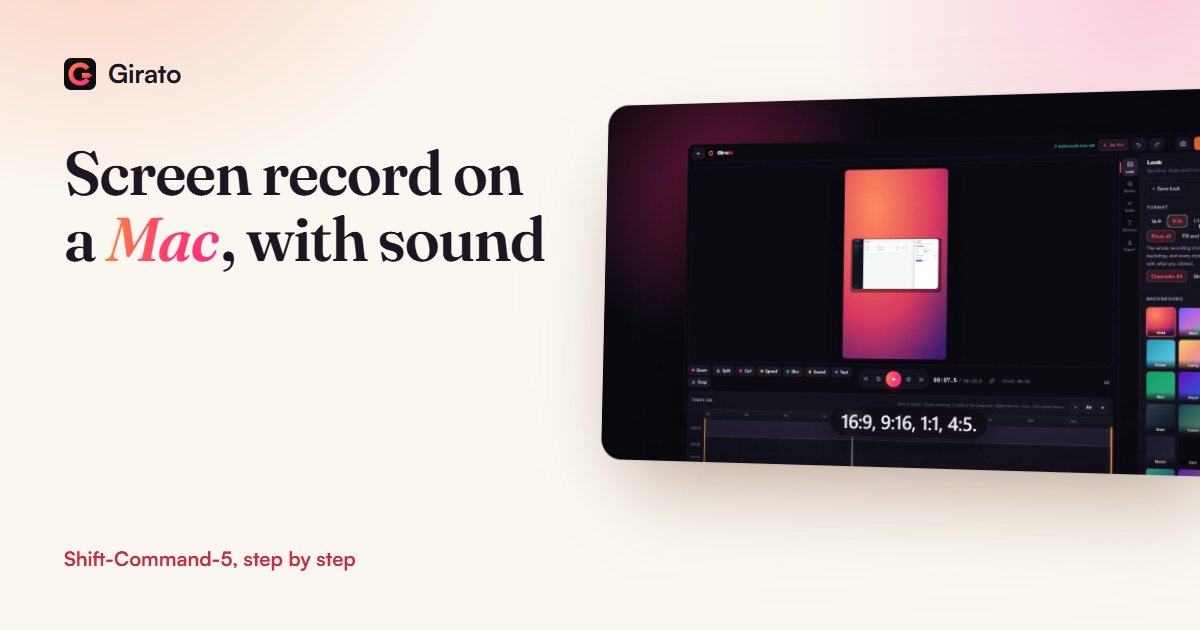
- Girato's Mac app records system sound on macOS 13 or later
- A zoom placed on every click
- Export MP4, GIF or 4K
Step by step
- Open the tools. Press Shift-Command-5 together. A toolbar appears at the bottom of the screen.
- Choose what to record. Record Entire Screen, or Record Selected Portion and drag a box. On macOS Tahoe 26 or later there is also Record Selected Window.
- Pick a microphone. Open Options and choose a microphone if you want your voice in the recording.
- Record, then stop. Click Record (for Record Selected Window, click the window you want instead). When you are done, click the Stop button in the menu bar, or press Command-Control-Esc.
- Find the file. By default it lands on your desktop as a .mov file named "Screen Recording" with the date and time. You can pick a different Save to folder under Options.
QuickTime Player gives the same result: File > New Screen Recording, or Control-Command-N, opens the same Screenshot tools.
Recording the Mac's own sound
Your voice through a microphone works on every recent macOS. The sound the Mac itself plays, such as a video, an app's alerts or a call, is different: Apple added an Include System Audio option to the built-in tool in macOS 27. Before that, the built-in tool records a microphone only.
| Your macOS | Built-in: your voice | Built-in: the Mac's sound | Girato Mac app |
|---|---|---|---|
| macOS 27 or later | Yes, choose a microphone | Yes, Include System Audio | Voice and system sound |
| macOS 13 to Tahoe 26 | Yes, choose a microphone | No | Voice and system sound |
| macOS 12 | Yes, choose a microphone | No | Voice only |
In a browser on a Mac, Chrome and Edge can share the sound of a single tab, but not the whole system's sound. If the sound you need comes from another app, use the Mac app or macOS 27.
Editing the recording
- QuickTime Player trims, rotates and splits a recording into clips you can rearrange or delete (Edit > Trim, then drag the yellow handles).
- iMovie is free on the Mac App Store for a fuller edit.
- Girato opens the .mov in its editor for the things screen recordings need: a zoom where the text is small, blur over private details, step titles, captions, and export to MP4 or GIF in any shape.
When a recorder app is worth it
- You are on macOS 13 to 26 and need the Mac's own sound.
- You want each click zoomed in for you instead of editing zooms by hand.
- You want an MP4 to post, not a .mov to convert.
Frequently asked questions
What is the shortcut to screen record on a Mac?
- Shift-Command-5 opens the toolbar
- Choose screen, portion or window
- Then click Record
- Control-Command-N does the same from QuickTime
How do I screen record on a Mac with internal audio?
- macOS 27 or later: choose Include System Audio
- Older versions: microphone only
- Or use a recorder app
- Girato's Mac app records it on macOS 13 or later
Where do screen recordings go on a Mac?
- Your desktop, by default
- Saved as .mov files
- Named Screen Recording plus the date and time
- Change it under Options, Save to
Can I record just one window on a Mac?
- Built in on macOS Tahoe 26 or later
- Earlier: drag a box with Selected Portion
- Girato records one window on any supported macOS
Sources
- Apple Support: How to record the screen on your Mac (published 14 Sep 2026), checked 9 Nov 2026
- Apple: Take a screenshot or screen recording on Mac (file names and format), checked 9 Nov 2026
- Apple: QuickTime Player User Guide (trim, split, rearrange), checked 9 Nov 2026
- Apple: Trim a movie in QuickTime Player, checked 9 Nov 2026
- Apple: Split a movie into clips in QuickTime Player, checked 9 Nov 2026
- Mac App Store: iMovie, checked 9 Nov 2026
- MDN: getDisplayMedia browser compatibility (audio capture), checked 9 Nov 2026
Finish your Mac recording
- Zooms, blur and captions in one editor
- Export MP4 instead of .mov
- Free in your browser, no install