Short answer: on Windows 11, Snipping Tool (Windows+Shift+R) can record the PC's sound and your microphone. On a Mac, Shift-Command-5 records your microphone, and the Mac's own sound on macOS 27 or later. In Chrome or Edge, tick Share audio when you pick a tab; whole-system sound works on Windows and ChromeOS only.
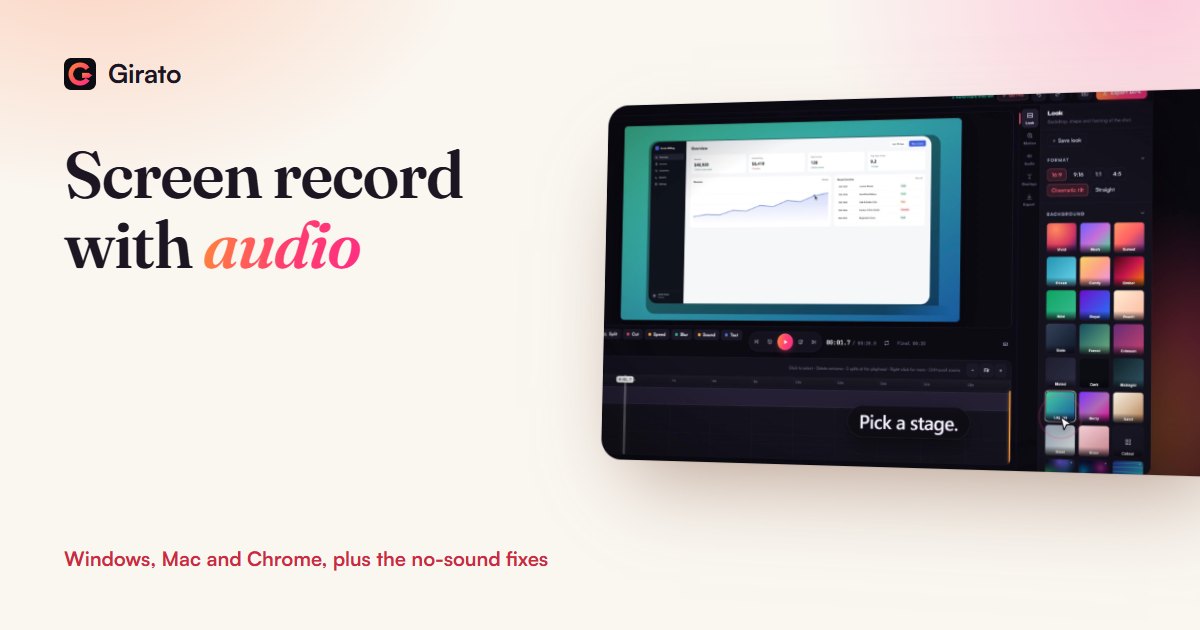
- Windows app: system sound always
- Mac app: system sound on macOS 13 or later
- Each track has its own volume in the editor
What each tool can record
| Where | Tool | Your voice | The computer's sound |
|---|---|---|---|
| Windows 11 | Snipping Tool, Windows+Shift+R | Yes | Yes, optional |
| Windows 11 | Xbox Game Bar, Windows+Alt+R | Yes | Yes, with Audio to record set to All |
| Mac, macOS 27 or later | Shift-Command-5 | Yes | Yes, Include System Audio |
| Mac, earlier macOS | Shift-Command-5 | Yes | No |
| Chrome or Edge on Windows, ChromeOS | Any web recorder | Yes | A tab, or the whole screen's sound |
| Chrome or Edge on Mac, Linux | Any web recorder | Yes | A single tab only |
| Firefox, Safari | Any web recorder | Yes | No |
| Windows 10 or 11 | Girato app | Yes | Yes |
| Mac, macOS 13 or later | Girato app | Yes | Yes |
Windows 11
- Snipping Tool. Press Windows+Shift+R, drag the area, then select Start. Microsoft announced optional PC audio and microphone recording for it in 2023, on its Windows Insider blog.
- Xbox Game Bar. Made for recording a game or app. Press Windows+Alt+R in the app to start, and Windows+Alt+M to turn the microphone on or off. To get every sound, set Audio to record to All (Windows+G, then Settings, then Captures). Clips save as MP4 in Videos, in a folder called Captures.
Mac
Press Shift-Command-5, open Options and choose a microphone for your voice. On macOS 27 or later, also choose Include System Audio for the Mac's own sound. On earlier versions the built-in tool has no system sound option, so use a recorder app. The full Mac walkthrough is in how to screen record on a Mac.
Chrome and other browsers
When a web recorder asks what to share, Chrome and Edge offer an option to share audio alongside the picture. Choose a tab and turn that option on to capture the tab's sound on any system. On Windows and ChromeOS, sharing the entire screen can capture the whole system's sound. On a Mac or Linux, only a tab's sound is available. Firefox and Safari do not capture tab or system sound at all; your microphone still works.
No sound in your recording? Check these
- The audio option. In Chrome and Edge the sound is only captured if the option to share audio was on in the picker.
- Tab or screen. On a Mac, share the tab that plays the sound; the whole screen will not carry it.
- The browser. Firefox and Safari record your microphone only. Switch to Chrome or Edge, or a desktop app.
- Game Bar's setting. If only the game or only your voice came through, set Audio to record to All and record again.
- Test first. Even when sound is requested, a browser can return a recording with no audio track. Record five seconds and play it back before the real take.
Frequently asked questions
Why does my screen recording have no sound?
- The share-audio option was off in Chrome
- On a Mac, share the tab, not the screen
- Firefox and Safari record the microphone only
- Always record a five-second test first
How do I record my screen with audio on Windows 11?
- Snipping Tool: Windows+Shift+R
- It can record PC audio and your mic
- Or Game Bar: Windows+Alt+R
- Set Game Bar's Audio to record to All
Can I record internal audio on a Mac?
- Built in on macOS 27 or later
- Choose Include System Audio
- Earlier versions need an app
- Girato's Mac app: macOS 13 or later
Can I record my voice and the computer's sound separately?
- Yes, in Girato
- Microphone and system sound are separate tracks
- Each has its own volume and mute
Sources
- Microsoft: Use Snipping Tool to capture screenshots (Windows+Shift+R), checked 9 Nov 2026
- Windows Insider blog, 31 Aug 2023: Snipping Tool PC audio and microphone, checked 9 Nov 2026
- Microsoft: Record your screen with Xbox Game Bar, checked 9 Nov 2026
- Xbox Support: Adjust capture settings (All audio), checked 9 Nov 2026
- Apple Support: How to record the screen on your Mac, checked 9 Nov 2026
- MDN: getDisplayMedia, and its browser compatibility for audio, checked 9 Nov 2026
- Chrome for Developers: screen sharing controls (tab audio), checked 9 Nov 2026
Record with sound
- Voice and system sound as separate tracks
- Captions written from your voice
- Free in your browser